Turning a Kobo Nia into something better with KOReader
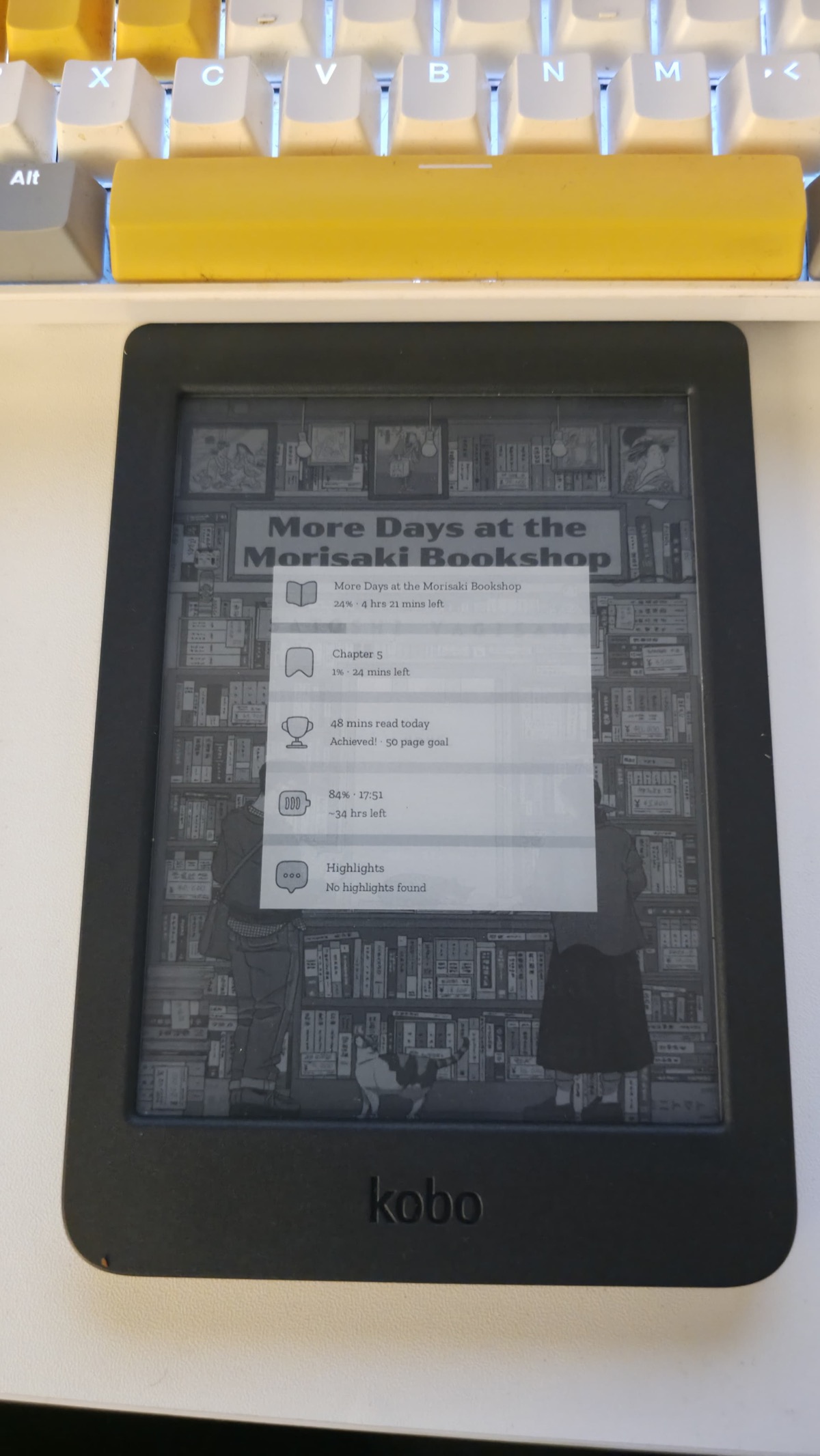
That is my Kobo Nia asleep. Book cover as the background, current book and chapter progress, how long I read today against my page goal, battery with a time-to-empty estimate. None of that is Kobo software. It is two open-source projects layered on a stock device, and the whole thing took an evening.
A quick clarification, because I see this said loosely: the Kobo itself is not open source. The hardware is proprietary and so is Nickel, the reader UI it ships with. What makes it interesting is that it runs Linux underneath, and Kobo have never gone out of their way to lock it down. There is no signed-bootloader fight here. You drop files on a USB mass-storage volume and the device picks them up. The open-source part is what the community built on top of that opening.
The two projects
KOReader — an AGPL document reader that replaces Nickel for actual reading. Better typography controls, dictionaries, statistics, OPDS, an RSS-to-EPUB downloader. It runs on Kobo, Kindle, PocketBook, reMarkable, Android and desktop.
customisablesleepscreen.koplugin by pxlflux — the plugin that draws the screen above. Reading stats, book data, highlights, presets, icon sets, and a monochrome mode that matters if your device is not one of the newer colour ones.
What I installed on
- Kobo Nia, firmware 4.38.23684
- KOReader v2026.07.1
- Customisable Sleep Screen v2.2.0
- A MacBook
Check your firmware at Home → More → Settings → Device information before anything else. Kobo’s 5.x firmware has a heavily reworked userland and the install path below is written for 4.x.
Step 1: pick a launcher, and pick only one
KOReader needs something to launch it, because Nickel has no concept of third party apps. Two live options:
- NickelMenu — adds entries to Nickel’s own menu.
- KFMon — watches for a “book” being opened and launches the app instead.
I went with NickelMenu for one reason: it survives official Kobo firmware updates. KFMon is disabled by every firmware update and has to be reinstalled. They are mutually exclusive, so decide once.
Download NickelMenu’s KoboRoot.tgz, plug the Kobo in, tap Connect, and drop
it in as-is:
cp -X ~/Downloads/KoboRoot.tgz /Volumes/KOBOeReader/.kobo/
Leave it compressed. The device extracts it on next boot and deletes it. That
deletion is your success signal — if KoboRoot.tgz is still sitting there after
a reboot, it did not take.
Step 2: KOReader itself
Grab koreader-kobo-*.zip from the
releases, then:
ditto -x -k --norsrc --noextattr ~/Downloads/koreader-kobo-v2026.07.1.zip /tmp/ko
mkdir -p /Volumes/KOBOeReader/.adds
ditto --norsrc --noextattr /tmp/ko/koreader /Volumes/KOBOeReader/.adds/koreader
Verify this file exists and note the depth:
ls /Volumes/KOBOeReader/.adds/koreader/koreader.sh
It must not end up at .adds/koreader/koreader/koreader.sh. Double-nesting
is the single most common install failure.
Step 3: stop Nickel flooding your library
On firmware 4.17 and newer, Nickel will happily index the hidden directories you
just created and fill your library with hundreds of junk entries. Edit
.kobo/Kobo/Kobo eReader.conf and add:
[FeatureSettings]
ExcludeSyncFolders=(\\.(?!kobo|adobe).+|([^.][^/]*/)+\\..+)
Back the file up first. The doubled backslashes are literal — that is Qt’s ini escaping, not a typo, and not something to “fix”. I verified the bytes on disk after writing it.
Encouragingly, Nickel rewrites this file on shutdown and preserves the key.
Step 4: the launcher entry
mkdir -p /Volumes/KOBOeReader/.adds/nm
echo 'menu_item:main:KOReader:cmd_spawn:quiet:exec /mnt/onboard/.adds/koreader/koreader.sh' \
  > /Volumes/KOBOeReader/.adds/nm/koreader
Use echo, not a text editor. TextEdit silently appends .txt and NickelMenu
will ignore the file without telling you.
Step 5: the sleep screen plugin
Download the latest release zip and drop the folder into KOReader’s plugins directory:
ditto --norsrc --noextattr customisablesleepscreen.koplugin \
  /Volumes/KOBOeReader/.adds/koreader/plugins/customisablesleepscreen.koplugin
Take the tagged release, not main. I checked the commits sitting on main
above the release and they were translations and a webp feature — nothing worth
the risk of an untested tree.
Then eject, and this is the step people skip:
dot_clean -m /Volumes/KOBOeReader
diskutil eject /Volumes/KOBOeReader
The macOS trap
The Kobo is FAT32. macOS writes AppleDouble ._ sidecar files all over it, and
Nickel displays them as phantom library entries.
Every guide tells you to use cp -X and ditto --norsrc --noextattr to prevent
this. I did, and then counted:
- copying 10 books with
cp -Xproduced 10._files - installing the sleep screen plugin produced 164
cp -X did not stop them, because the source files carry extended attributes of
their own. dot_clean -m is the step that actually does the work. Run it
before every eject and stop worrying about which copy flag you used.
Two smaller ones:
- If
diskutil ejectfails with “dissented by PID … zsh”, that is just a terminal window whose working directory is on the volume.cd ~and try again. Do not force it. - Hidden folders in Finder:
Cmd+Shift+Period.
Turning the sleep screen on
Installing the plugin does nothing visible. I spent a while confused here, so:
- Fully exit KOReader and relaunch. Plugins load only at startup.
- ☰ → Settings → Screen → Customisable sleep screen
- Tick Enable customisable sleep screen
- Press power while still inside KOReader, with a book open
Step 4 is the one that catches people. Your Kobo has two sleep screens. Press
power on the Kobo home screen and you get Nickel’s, and the plugin is never
consulted — it is a KOReader feature, and KOReader has to be the thing running.
Looking at the source, the plugin hands control straight back to stock KOReader
unless KOReader’s own screensaver_type setting equals customisable_ss, which
is exactly what that checkbox writes.
If your device is monochrome like the Nia, switch it to monochrome mode. The defaults are tuned for the colour Kobos and the coloured progress bars turn to mud on 16-level grayscale. Book cover as background is the setting that makes it look like the photo above.
Worth it?
The reading statistics alone changed how I use the thing — a page goal on the
sleep screen is a surprisingly effective nudge. But the part I keep thinking
about is that all of this is just files on a USB volume. No jailbreak, no
warranty theatre, no account. Official firmware updates are still safe to take,
NickelMenu survives them, and deleting .adds/koreader and .adds/nm puts
everything back exactly as it was.
Next on my list is KOReader’s News Downloader, which turns RSS feeds into EPUBs on the device — the plan being to push my own generated content to the reader from a small server.
Links: KOReader · Kobo install wiki · Customisable Sleep Screen · NickelMenu